Pattern documentation guidelines#
Size callouts in Inkscape#
Although you can make all the measurements in inkscape, it’s nice to have ready-made size callouts in images. Especially since sooner or later any pattern will be sent somewhere as a pdf or png instead of the original SVG, and you never know if the physical measurement units will remain constant.
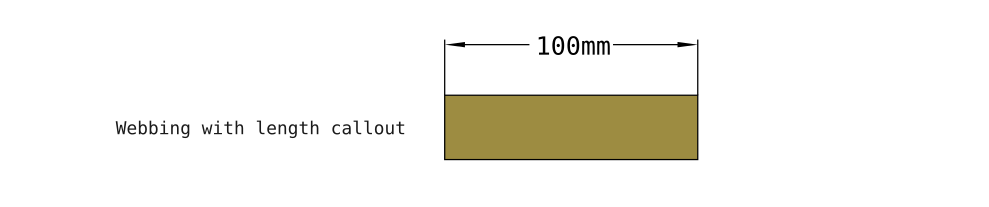
To add size callouts in inkscape, do the following:
Select the object
open Path > Path Effect panel
press
+add “Measure Segments” effect
For readability, in the General tab, set:
Unit: mm
Font: Monospace Regular, 28
Position: 10
Line width: 0.50
In the Options tab:
Precision: 0
Blacklist segments
use separate indexes with comma
check invert blacklist to whitelist segments
Exporting Layers from Inkscape#
For instructions that involve multiple steps, make a layer in inkscape for each individual step. In Inkscape version >1.2 you can batch export layers into individual .svg files. This is a very convenient way to keep all your illustrations in a single worksheet, but still have sections of that worksheet available to link and reference in markdown or .rst files.
Note that if you don’t have the batch export feature, you’re probably on an old version on Inkscape (ubuntu repositories for LTS versions are still on 1.1.x). Consider usign the apt PPA as instructed on inkscape.org.
To batch export layers, do the following:
make sure your illustrations are properly set up with layers
Open File > Export from the menu bar
Open the Batch export tab in the panel
Check all the layer you want to export under the Layers section
Check Export Selected Only
Set Format to Plain SVG
Choose the export directory
Press Export
Exported files will by default use the layer name as the file name
Visual styles#
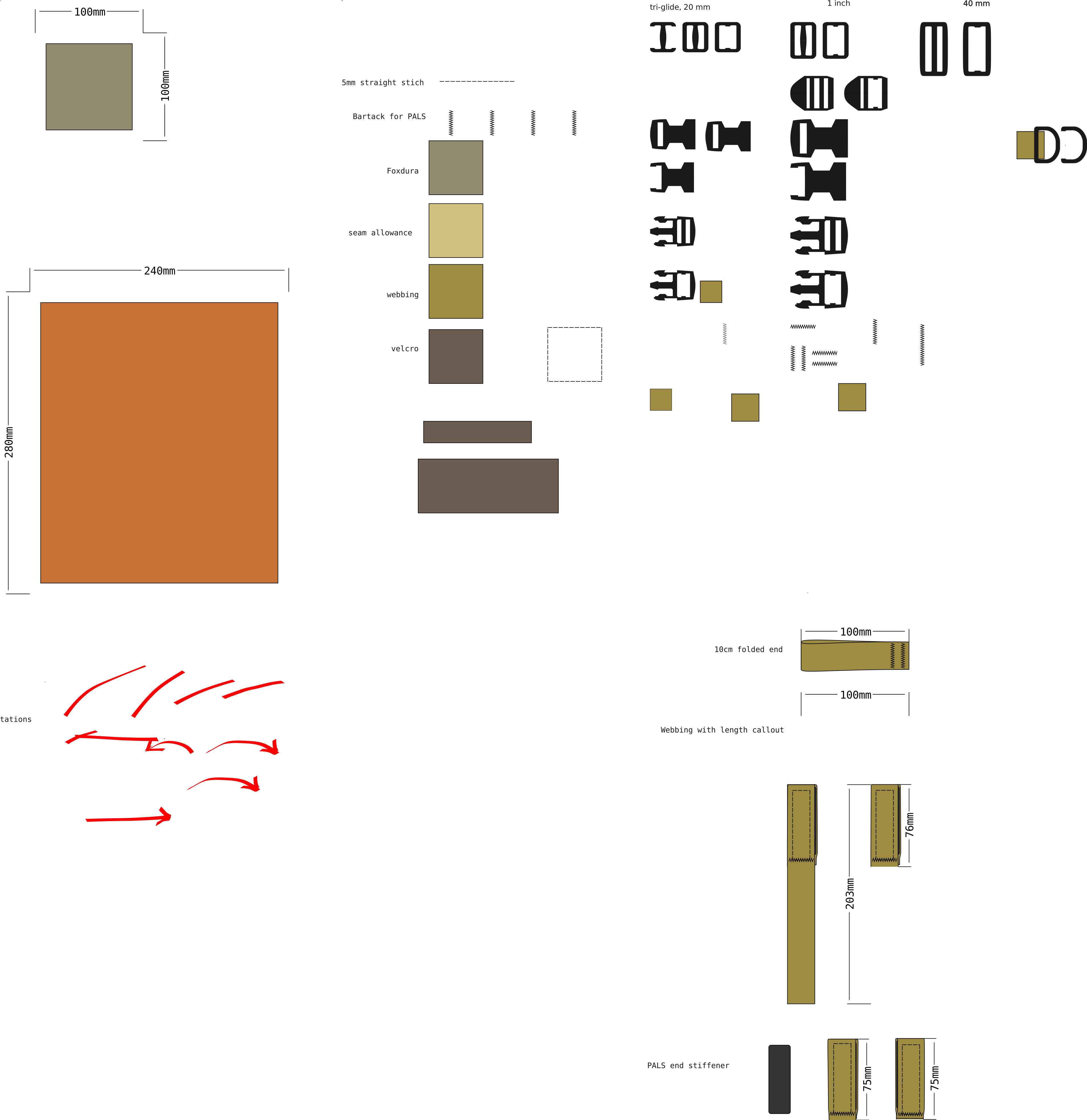
The visual style guide in buckles.svg has slowly evolved to ensure that the SVG files are readable in as many contexts as possible.
do not use ‘hairline’ stroke. It is very inconsistent with how it’s rendered. Instead use e.g a 0.5mm stroke width. Set Inkscape to use the bounding box of the pure path geometry, not the rendered geometry. Otherwise the stroke width will be added as padding to the shape bounding box, and cause misalignments in the illustrations
avoid using transparency. Browsers and image viewers are inconsistent in how they display transparent objects. It may difficult to understand images.